How to use IP Blocker?
IP Blocker programs are widely used to protect websites from unwanted access. BeeThink IP Blocker is the best IP blocking software that makes primary users to archive IP banning goal easily. This article shows how to use BeeThink IP Blocker to ban IP addresses on Windows.
First of all, please download BeeThink IP Blocker from BeeThink website. After a short download, the BeeThink IP Blocker installation file will be saved onto your computer. Double click the downloaded file and then the installation process will begin.

Installing BeeThink IP Blocker
Before installation, it is suggested to completely remove the previous versions of BeeThink IP Blocker or Anti DDoS Guardian. For most steps in the installation, just simply click the 'Next' buttons to continue. There are only two steps need to be carefully configured. One is 'Windows service setting', while another one is 'Filter exception rules setting'. Please enable them if you want to choose the options.
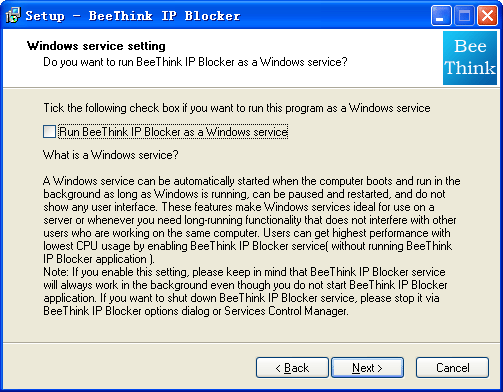
1. Windows Service Setting
Enable this option if you want BeeThink IP Blocker to be ran as a Windows service. A Windows service can be automatically started when the computer boots and run in the background as long as Windows is running. It can be paused, be restarted and do not show any user interface. These features make Windows services ideal for use on a server or whenever you need long-running functionality that does not interfere with other users who are working on the same computer.
2. Filter Exceptional Rules Setting
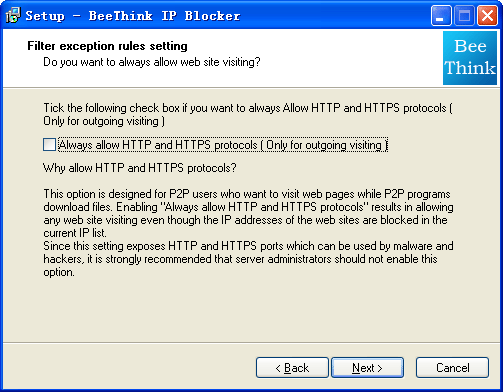
This exception rule allows users visiting websites, no matter if the IP addresses of the websites are in the block list or not.
Once the above two settings are applied, the options will be effected to all users on the computer which is installed BeeThink IP Blocker.
Using BeeThink IP Blocker
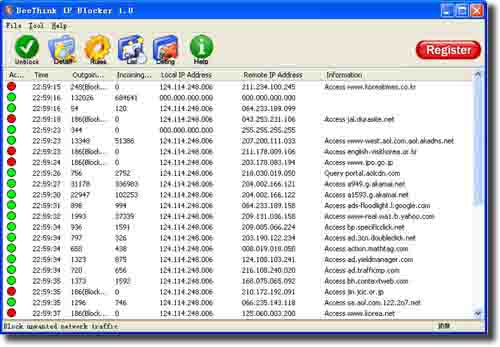
After the wizard dialogs, the BeeThink IP Blocker main window shows. As you can see, network packets are well organized and displayed in the form of network sessions. BeeThink defines all network packets passing through two specific computers (two IP addresses) belong to one session. In the main dialog, the local IP addresses and remote IP addresses are displayed as well as outgoing bytes and incoming bytes. If an IP address is blocked, a red circle displays at the front of the session. If an IP address is allowed, a green circle shows. In addition, BeeThink IP Blocker displays DNS information of each session, which is extremely useful for those who want to know the detailed information of the remote IP addresses, such as website URLs. With these features, BeeThink IP Blocker is recognized as a good alternative to Windows built-in firewall and users can practice "monitor, analyze and block" work flow.
1. Block IP Addresses
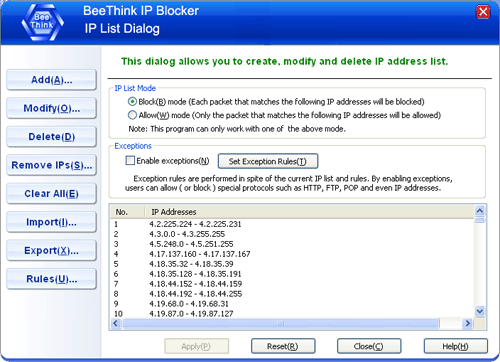
BeeThink IP Blocker makes it easy to block IP addresses. The following image shows the 'IP List' dialog. There are two work modes used in BeeThink IP Blocker, which are 'Block' mode and 'Allow' mode. With the 'Block' mode, each network packet that matches the IP block list will be blocked. On the other hand, with the 'Allow' mode, only the packets that match the IP allow list will be allowed.
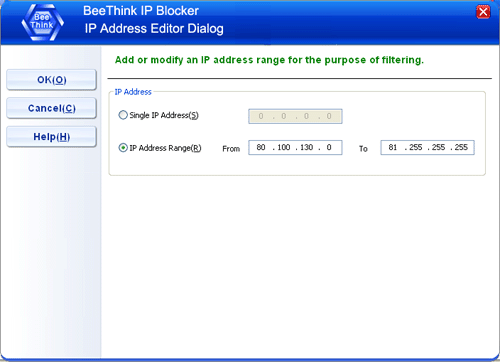
Users can input single IP address or IP address ranges in the 'IP Address Editor' dialog.
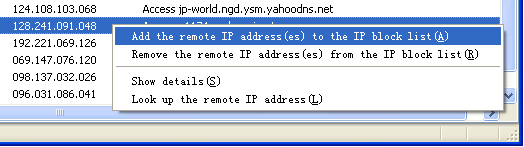
In order to make IP blocking easy to use, BeeThink IP Blocker has a feature that allows user to right-click any network flow. In the main window, a popup menu displays if any network flow is right-clicked. Users choose the proper menu item to block or unblock the remote IP addresses.
2. Importing IP List
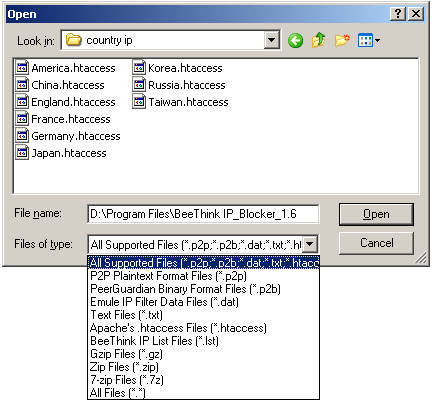
Users can import IP list file by clicking 'Import IP List' button in the main window. For website masters, BeeThink IP Blocker was designed for Internet servers to ban country IP addresses via Apache's .htaccess files. IP Blocker Firewall can be deployed on HTTP servers, mail servers, FTP servers, VOIP PBX and SIP servers and so on.
3. Configuring TCP/IP protocols Based Rules
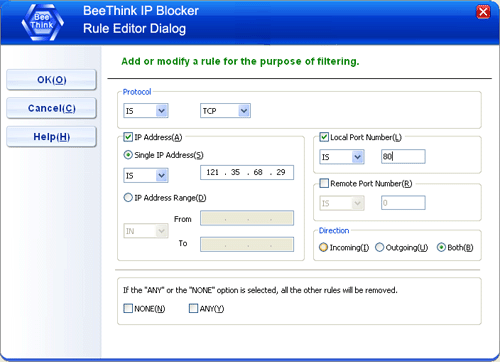
BeeThink IP Blocker can be used as a simple firewall and users can customize the firewall rules based on IP address, port, protocol, and other factors.
4. Enabling Exceptional Rules
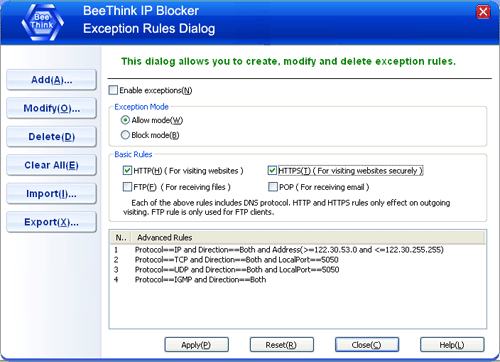
Exception rules are performed in spite of the current IP blocking list and rules. It is particularly useful for those who want to allow specific TCP/IP protocols. By enabling exceptions, users can allow (or block) special protocols such as HTTP, FTP, SMTP and even a special TCP/IP protocol.
5. Options
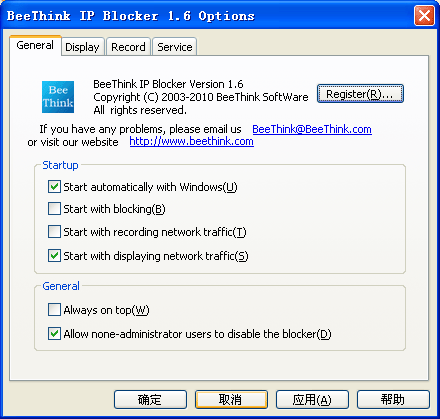
There are several options available for users to configure BeeThink IP Blocker.
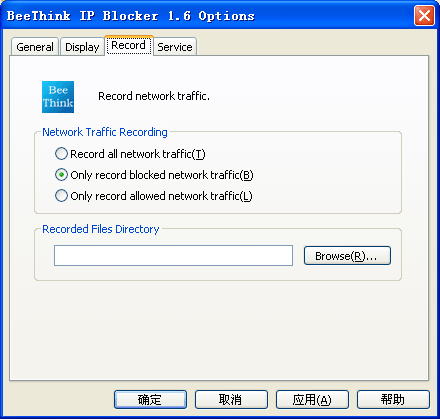
It is convenient to record blocked network traffic, allowed network traffic, or all network traffic. The recorded file can be used as Internet server log files to analyze network traffic.
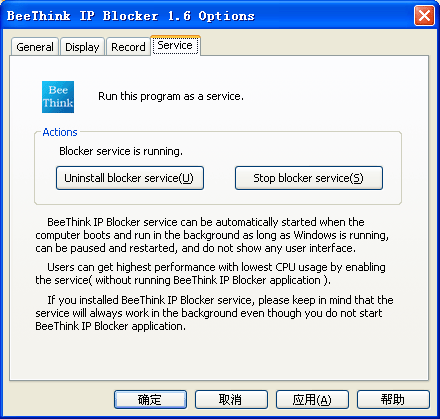
BeeThink IP Blocker can run as a Windows service, which is particular important for website managers.
6. Viewing Network Traffic Detail
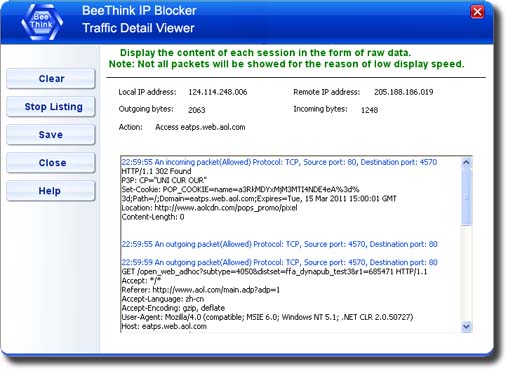
If users want to know more about network traffic, such as TCP ports and packet content, they can double-click a network session and then the 'Traffic Detail Viewer' dialog shows.